A subscription includes up to eight facilities (usually rooms) which make up your venue.
If you need more than eight rooms, please get in touch with Hall Booking Online support.
Hirers can choose to request to use one or multiple rooms in a single booking.
To manage your rooms, go to Settings. Click on Room Administration.

On the room management page, you'll see a list of rooms for your venue.
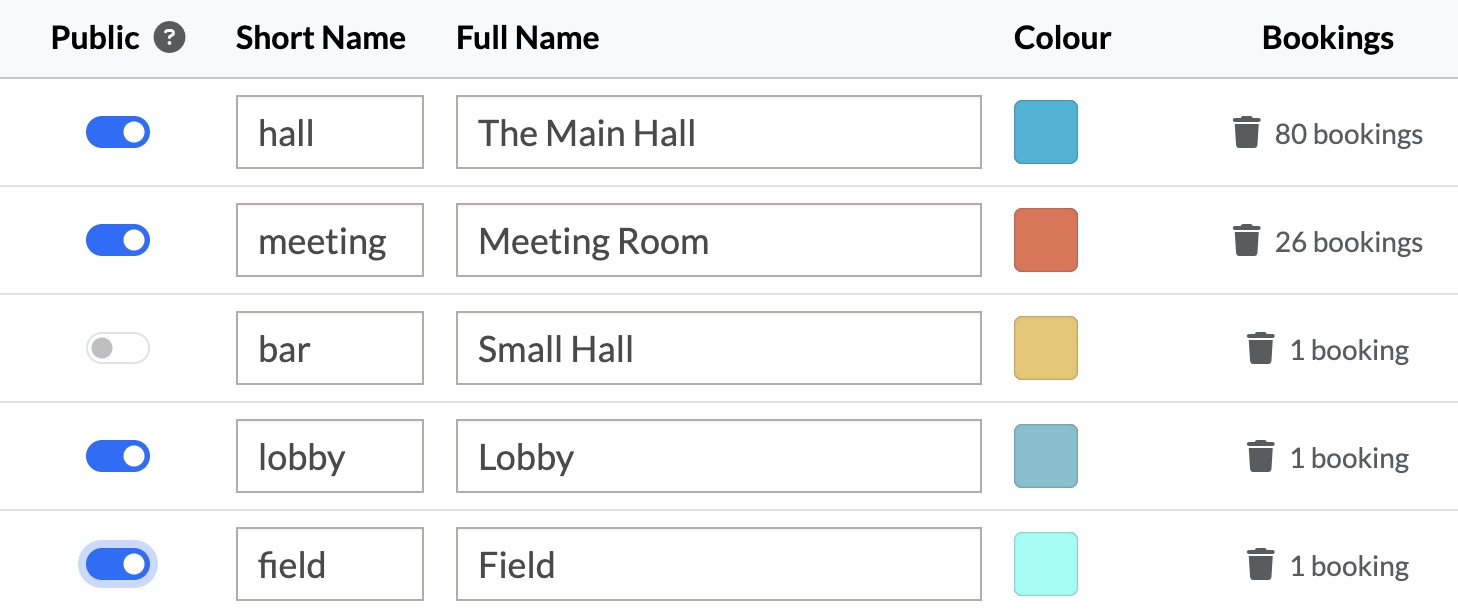
Below the list are spaces to add a new room. The short name should be one word and (as the name suggests) short. This will appear on certain calendar views where space is limited.
You should also choose a full name for the room. Sometimes, the same name is fine for both - e.g. Kitchen.
You can also choose the colour used for the room. If you're not sure, leave the colour blank and the system will choose a colour for you.

Important: Don’t create a separate “Whole Building” room
If your venue has more than one bookable room, each space should only appear once on the calendar.
Don’t create an additional room called Whole Building, Entire Venue, All Rooms, or anything similar.
Why?
The system checks for booking clashes by comparing the rooms selected on each booking. If you create a separate “Whole Building” room, it becomes possible for one booking to reserve Hall A + Hall B, while another booking reserves Whole Building at the same time. Because these are different room selections, the system cannot recognise that they refer to the same space, so both bookings could be accepted.
Instead, list each room only once.
If someone wants exclusive use of the whole venue, simply ask them to tick all of the rooms they require when making their booking.
If you think this might not be obvious to hirers, add a note in Facilities Explanation. This appears beneath the room selection boxes on the booking form and can explain that exclusive use of the venue is achieved by selecting all of the rooms. Head to Advanced Settings to add this.
If you're not sure about the best way to list your rooms - just get in touch with us!
Looking for more help?
Contact us if you need further assistance.