You might have occasional additional emails that you need to send hirers.
These can be sent through Hall Booking Online using our Additional Email Templates feature.
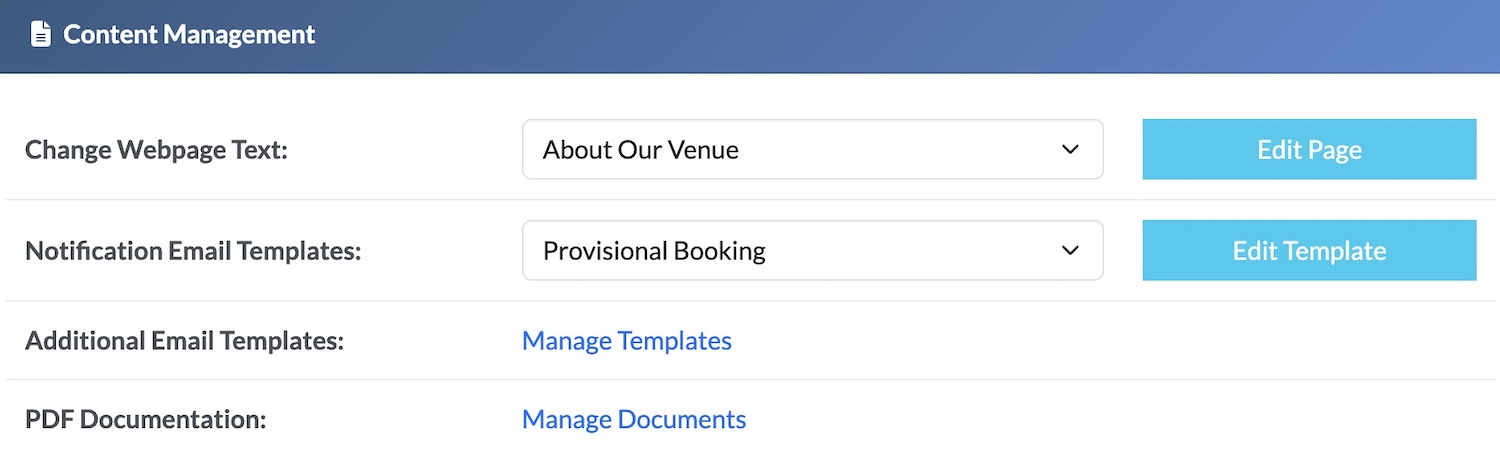
Head to Settings >> Content Management >> Additional Email Templates
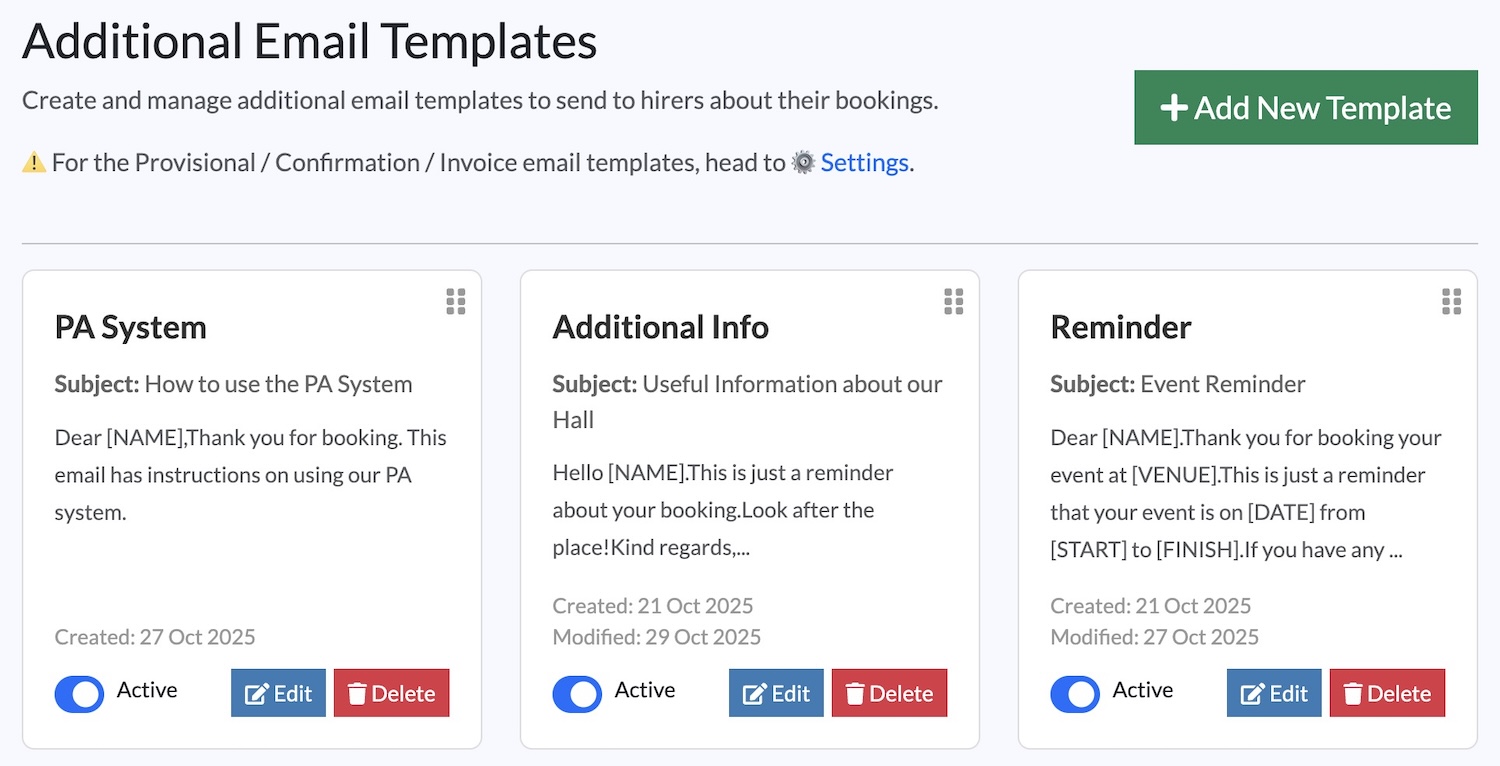
On the Additional Templates page, click on + Add New Template.
Type in the text of the email template. If you use the words in capitals in square brackets - eg. [NAME] - these will automatically be replaced by the name of the person in the booking.
Scroll down and click on ‘Create Template’ to finish.
The templates can be edited, deleted and the order changed.
Sending a Template Email Message
When you have created at least one email template, it will appear in a drop down by all booking listings.

Click on the three vertical dots and choose an email. You can review (and tweak) the message before it's sent - useful if you need to send something ‘unique’ such as a door code.
A note will be added to the administrator notes section of the booking with the name of the email template that was sent.
Looking for more help?
Contact us if you need further assistance.